

Say the lid of your storage box cracked, and the maker no longer sells spare parts. Not long ago, you would have needed CAD skills or a friend with a 3D printer. Today you can type one sentence or upload a photo, and a tool builds a mesh for you. That is the idea behind AI 3D modeling, and Meshy is a popular place to try it.
In this definitive Meshy review, we break down exactly what the platform offers, detail the limits of its free plan, and compare its text-to-3D and image-to-3D capabilities. We also outline every supported export format and provide a step-by-step creation guide, a feature comparison table, and direct answers to the most common technical questions.
Key Takeaways
- Meshy is one of the leading AI 3D model generators, and it runs fully in your web browser.
- It has two main creation modes: text to 3D and image to 3D, with multi-image input for better accuracy.
- The free plan gives 100 credits per month, which is enough for about five basic generations.
- Models export to common formats such as GLB, FBX, OBJ, STL, USDZ and 3MF.
- A set of free browser tools can convert, view, compress and repair 3D files.
- Developers can connect through the Meshy API, which is not part of the free plan.
What Is Meshy?
Meshy is one of the leading AI 3D model generators. You give it a text prompt or one or more images, and it creates a 3D model with a mesh and textures. You do not install anything, because the workspace opens in a browser tab.
The company has grown fast. According to a 2026 test by 3Dnatives, Meshy announced a Series B round of nearly 400 million dollars in July 2026, at a valuation of 1.5 billion dollars. The same report notes that games remain its core business, while 3D printing is a growing area. Named customers in that report include Bambu Lab, Creality, Elegoo, FlashForge and xTool.
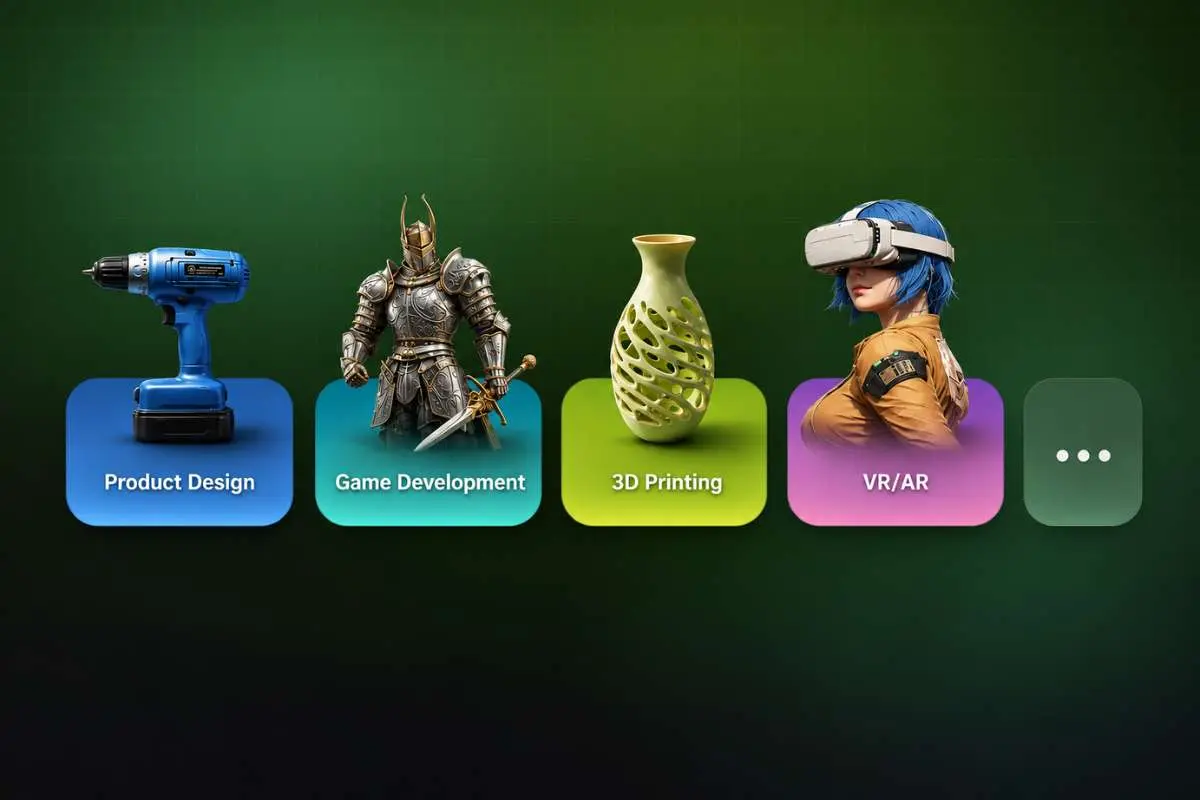
People use Meshy in three main areas:
- Game development: props, characters and background objects.
- 3D printing: figures, spare parts, gifts and prototypes.
- Design and visuals: quick concept models for mockups, AR and product ideas.
Main Features of Meshy
Text to 3D
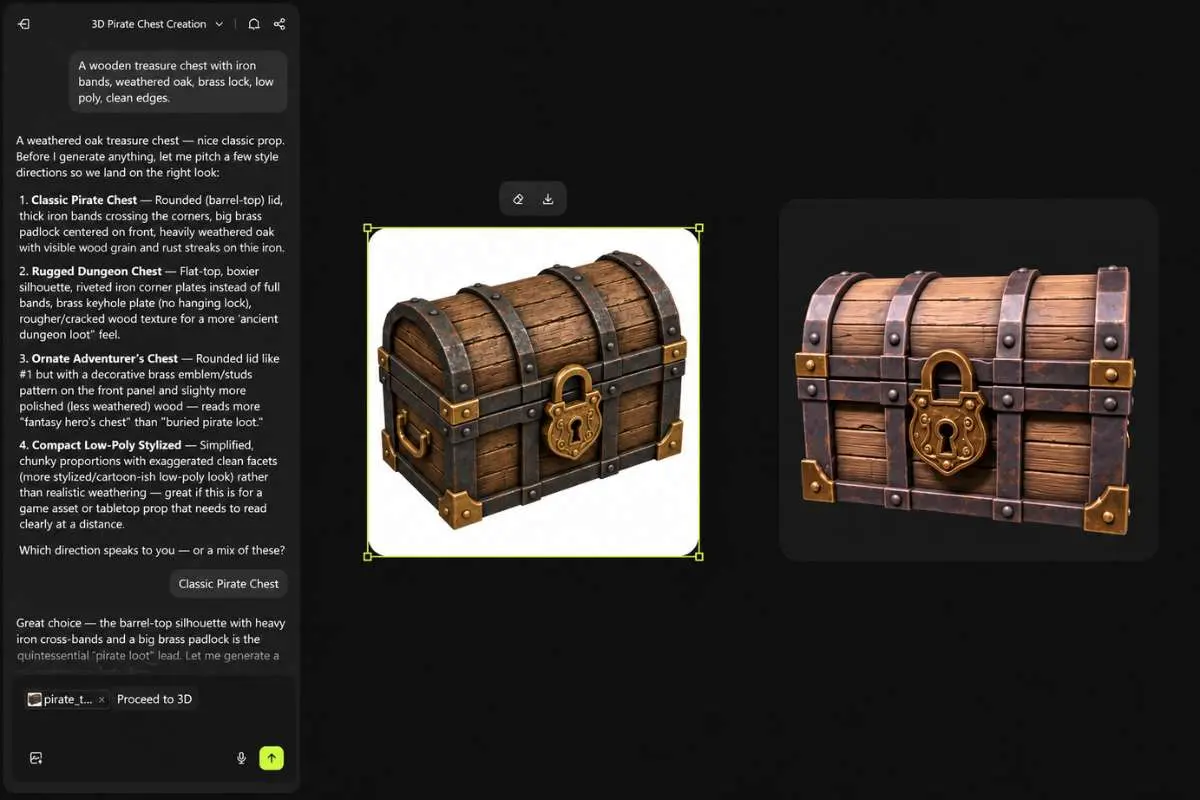
In this mode you write what you want, such as a small wooden treasure chest with iron corners. Meshy builds the shape and gives you a result in a short time. Clear prompts work best. Mention the object, the material, the style and the angle if it matters.
Image to 3D with Multi-Image Input
Image to 3D starts from a picture. You can upload a single image, or you can add several views of the same object. Multi-image input gives the AI more information about the front, sides and back, so the result is usually closer to the real item. A photo of a chess piece taken from three sides will normally give a better model than one photo from the front.
AI Texturing
Texturing adds color and surface detail. You can texture a model that Meshy made, or you can bring in your own mesh and ask for a new look, such as rusty metal or soft leather. According to the official pricing guide, texturing costs 10 credits per model.
Rigging, Animation and the 3D Agent
Meshy can also add a skeleton to a character, which is called auto-rigging, and apply animation. Rigging and animation are listed at 0 credits per model in the pricing guide. There is also a 3D Agent, a chat window where you can ask for ideas, request variants and get printing questions answered in one conversation. The 3Dnatives test describes the main tools as sitting in a menu on the left side of the workspace.
Is Meshy Free? The Free Plan Explained
Yes, Meshy has a free plan, and no credit card is needed. Here is how the free and the first paid plan compare, based on the Meshy pricing page and help center.
| Item | Free Plan | Pro Plan |
| Monthly price | 0 dollars | 20 dollars |
| Monthly credits | 100 | 1,000 |
| Access | Web app only | Web app plus more features |
| Queue priority | Lower | Higher |
| License for outputs | CC BY 4.0 (credit Meshy) | You own the assets |
| API access | No | Yes, on paid plans |
Some details are easy to miss:
- Credits reset on the first day of each month at 00:00 UTC, and free credits do not carry over.
- Meshy’s help center says free users get 10 free downloads per month for models made with Meshy 6 Lite.
- Plan details change often. One source in 2026 still lists 200 free credits, while Meshy’s own pricing guide says 100. Always check the current numbers on the official page before you plan a project.
What Can 100 Credits Do?
Here is a simple example. A full Text to 3D or Image to 3D generation costs 20 credits on Meshy 6. With 100 credits, that gives you five generations in a month. If you also texture each model at 10 credits, one finished model costs 30 credits, so you can make about three. This is why careful prompts matter. Each failed try uses up part of your month.
Free Browser Tools You Can Use Today
Meshy also offers a free 3D Tool Kit. The tools page lists eight free browser tools, including these:
- 3D File Converter: moves a model between formats such as OBJ, FBX, GLB, STL and 3MF. Free users convert one file at a time.
- Online 3D Viewer: opens common formats in the browser. Meshy says no installation or account is needed.
- STL Repair: fixes holes, flipped normals and non-manifold edges, so a model is closer to print-ready. It is free to start, using trial credits.
- 3D File Compressor: shrinks GLB, OBJ, STL, PLY and FBX files for faster sharing.
These tools help even if you never generate a model with AI. For example, if a slicer refuses your STL, a quick repair may solve it.
Export Formats and 3D Printing
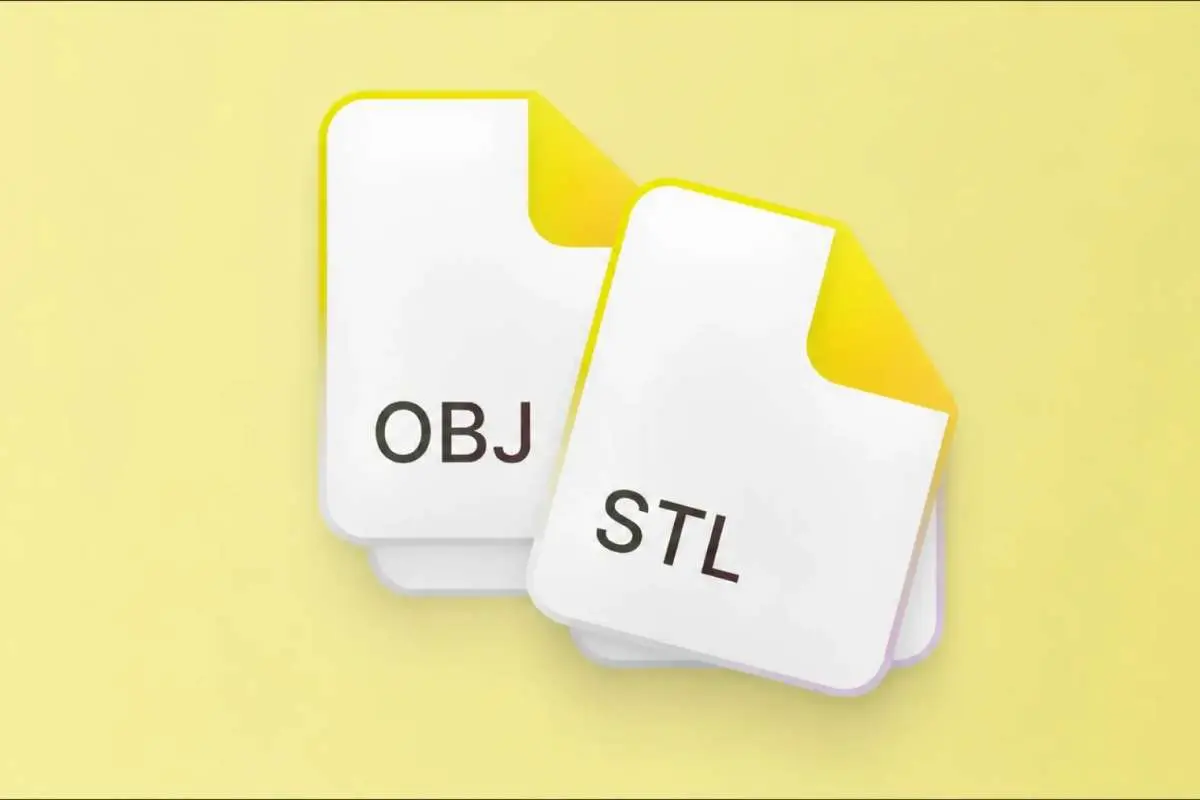
Meshy exports GLB, FBX, OBJ, STL, USDZ and 3MF. GLB and FBX suit game engines like Unity and Unreal. OBJ works in many editors. STL and 3MF are the usual choices for printing.
For printing, Meshy can send models to popular slicers, including Bambu Studio, OrcaSlicer, Creality Print, ElegooSlicer, LycheeSlicer and Ultimaker Cura, according to All3DP. If you want a closer look at how Meshy handles print-ready models, the page at meshy.ai/3d-print-files covers the printing side of the product in more detail.
In April 2026, Meshy also announced a link with Formlabs Form Now. After you generate a model, a button called Print with Form Now sends it to Formlabs’ on-demand print service, so a physical copy can be made and shipped.
How to Make Your First Model: Step by Step
- Create a free account. Open Meshy in your browser and sign in. No download is needed.
- Choose a mode. Pick Text to 3D if you only have an idea. Pick Image to 3D if you have a photo or several photos.
- Write a clear prompt or add images. Name the object, its material and its style. For photos, use even light and a plain background.
- Generate and compare. Meshy returns several options. Check shape, proportions and surface.
- Add texture if you need it. Use AI Texturing for color and material. Keep in mind the extra 10 credits.
- Check the mesh. Open the model in the free viewer. For printing, run STL Repair if the slicer shows errors.
- Export the right format. Choose GLB or FBX for games, STL or 3MF for printing.
Example Uses
The next three cases are example scenarios, not named customers. They show how the same tool fits different needs.
A replacement lid. A home user photographs a broken lid from three sides, uploads the images in multi-image mode, and exports an STL. After a repair pass, the file goes to the slicer. The lid still needs a test fit, because AI shapes are not exact measurements.
A board game miniature. A game designer writes a prompt for a small dwarf warrior holding a lantern, picks one result, exports it, and prints it in resin. Hobby players like this because they can try many ideas before choosing.
A small game prop pack. An indie developer needs ten crates, barrels and lamps. The developer generates them with text prompts, applies texture, and exports GLB files into the game engine. Simple props like these are a good match for AI, since small flaws are hard to notice in play.
What Independent Tests Found
Real tests give a more balanced view than any marketing page.
- All3DP tested Meshy 6 with photos of a statue. Meshy produced four model options within minutes from one set of images, and ten models when the testers used several reference photos, with each based on one photo. The testers called the results hit or miss, and some were far from the source. They also noted that the files were large, with hundreds of thousands of faces, so they were easy to edit in CAD.
- 3Dnatives checked the exported files instead of printed parts, because a print also depends on printer calibration and slicer settings. In one test, a photo of an FDM print led Meshy to copy the visible layer lines as ridges in the model. This shows the AI follows the picture closely, including flaws.
The lesson is simple. Meshy saves a lot of time, but you still need to inspect each model, and results vary from try to try.
Tips for Better Results
- Use one object per prompt. Scenes with many items often come out messy.
- Keep prompts short and clear. Long lists confuse the shape.
- For photos, remove clutter from the background.
- Add more views for objects with hidden sides.
- Check wall thickness before printing. Thin parts may break.
- Save your credits. Try a basic version first, then texture only the best result.
Meshy API for Developers
Developers can use the Meshy API to add 3D generation to their own apps and tools. The documentation lists endpoints for Text to 3D, Image to 3D, texturing, remeshing and animation, plus an API Playground for testing without code and an MCP server for AI agents. Meshy’s help center says the free plan is limited to the web app, so API use needs a paid plan.
Frequently Asked Questions
1. Is Meshy free to use?
Yes. The free plan costs nothing and gives 100 credits per month. It has lower queue priority and some limits on downloads.
2. Do I need 3D skills to use Meshy?
No. You can start with a sentence or a photo. Basic knowledge of 3D printing or game engines helps when you export.
3. Can I use free plan models in commercial projects?
Free plan outputs use the CC BY 4.0 license, which allows commercial use if you credit Meshy. Paid plans give you ownership of your assets. Read the current terms before you sell anything.
4. Which file formats does Meshy export?
GLB, FBX, OBJ, STL, USDZ and 3MF.
5. Does Meshy work on my phone?
The free viewer is browser-based and works on iOS, Android and tablets, according to Meshy. The full workspace is also web-based.
6. Are the models ready to print right away?
Often close, but not always. Check the mesh in a viewer or repair tool, and test small parts first.
7. Is multi-image input better than one photo?
In most cases yes, because the AI sees more sides of the object.
Final Thoughts
Meshy makes 3D creation open to people who have never touched modeling software. The free plan is good for testing, the browser tools are useful on their own, and the export list covers games, printing and design. Still, treat each result as a strong first draft. Check the mesh, mind the credit limits, and read the license that applies to your plan. With a little practice, a single sentence or a few photos can become a model you can use.
Read More: Revolutionizing Manufacturing: The Wonders of Metal 3D Printing