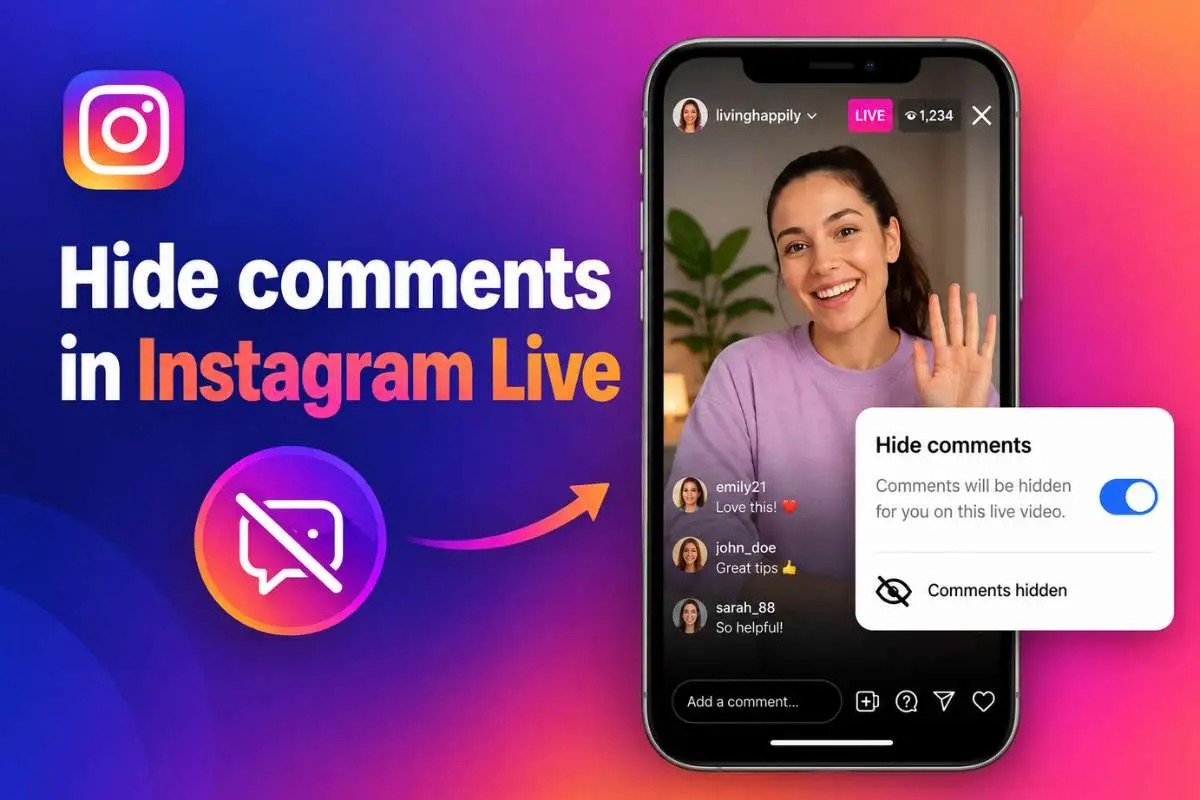
Ever tried going Live on Instagram, only to have the spotlight shift from you to the comment section? One minute, you’re sharing something meaningful; the next, the chat is flooded with ‘follow me,’ ‘who are you?’, random meme references, weird emoji parades, spam links, and trolling. Suddenly, your audience is watching the comments more than your content.
Don’t worry; you’re not alone. Every creator, influencer, or casual host deals with comment chaos sometimes. The good news is you’ve got options: turn comments off, filter unwanted words, use Limits, manage problem viewers, or add a Live moderator. Think of it as muting the party noise so everyone can actually hear your story.
Let’s break down how to hide comments in Instagram Live in 2026, without losing your audience, your focus, or your vibe.
Step-by-step guide: how to hide comments in Instagram Live
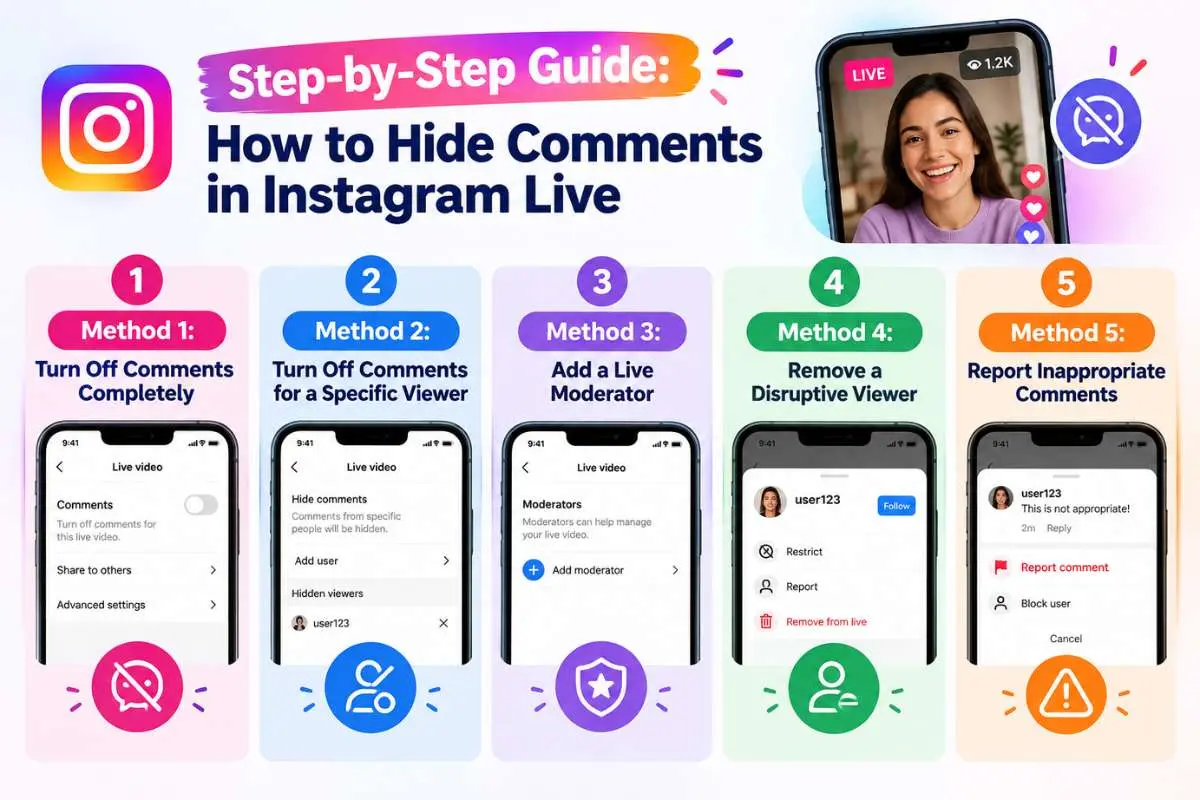
Let’s get practical. Here’s how you can easily hide Instagram Live comments using different built-in tools available as of 2026.
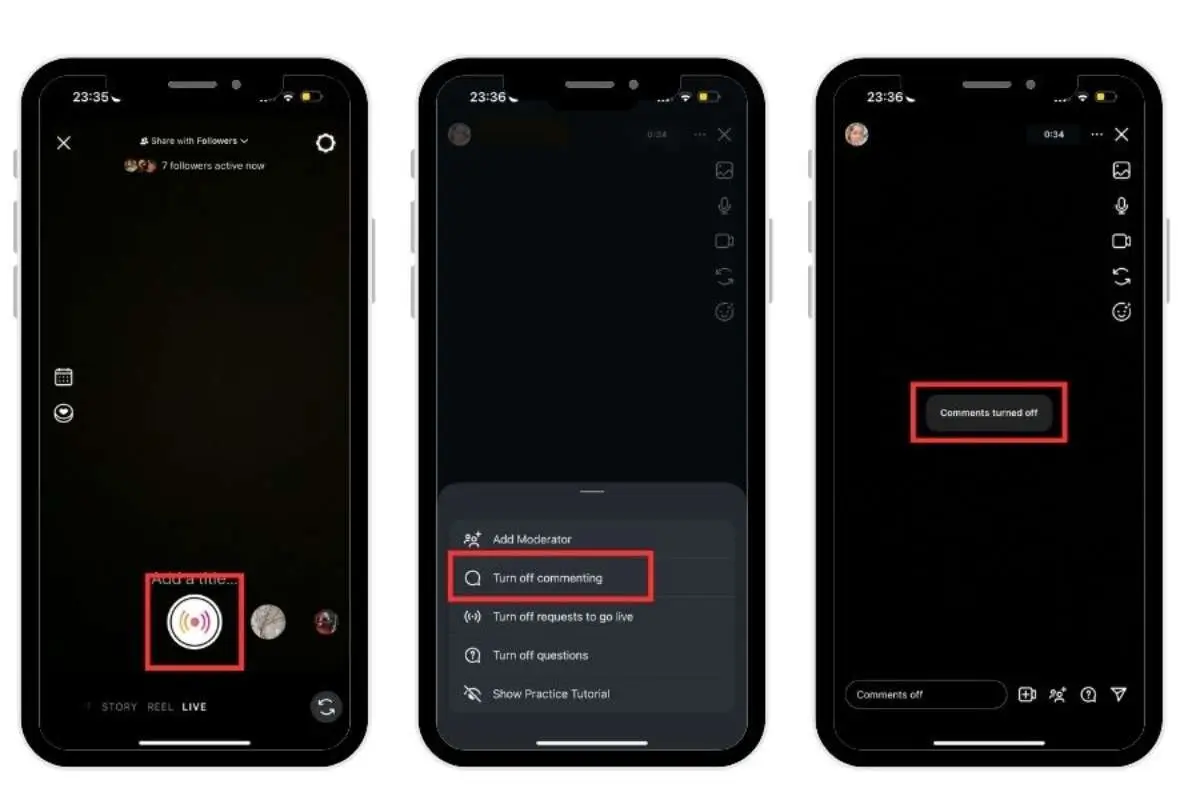
Method 1: Turn off comments completely
If you want full peace and zero distractions, this is your go-to option.
Steps:
- Open Instagram and start your Live.
- Once you’re live, find the comment box.
- Tap the three-dot (⋯) menu next to the comment field.
- Select ‘Turn Off Commenting.’
- To allow comments again, open the same menu and select ‘Turn On Commenting.’
Boom! No one can comment anymore. Your followers can still watch and click on the heart icon to like.
This feature works great for product launches, motivational speeches, or live performances where focus matters more than chatter. It’s the simplest way to hide Instagram Live comments instantly.
Method 2: Turn off comments for a specific viewer
One viewer causing chaos? No need to mute everyone. Hide comments in Instagram Live for that specific viewer and keep the rest of the chat flowing. Instagram’s Live Moderator tools support this targeted control.
Steps:
- Start your Instagram Live.
- Find the viewer whose comments you want to manage.
- Open the available viewer or comment controls.
- Select the option to ‘Turn off comments for that viewer ‘.
- Confirm the action if prompted.
This keeps moderation targeted, so you can handle spam or trolling without interrupting the conversation for everyone else.
Method 3: Add a Live moderator
Going Live with a big audience? You don’t have to be the host, presenter, and comment police all at once. Instagram allows creators to assign a trusted viewer as a Live moderator to help keep the chat under control.
Steps:
- Start your Instagram Live.
- Open the Live viewer/comment options.
- Look for the option to ‘Add Moderator ‘
- Select a trusted viewer and confirm.
Live Moderator allows creators to bring a trusted person into the moderation process. Moderators can help report comments, turn off comments for specific viewers, and remove viewers while the host stays focused on the Live.
Method 4: Remove a disruptive viewer
Sometimes one viewer isn’t just posting a bad comment; they’re turning the entire Live into their personal comment section.
If someone repeatedly disrupts your broadcast, removing them can be a better option than turning off comments for everyone.
Steps:
- Start your Instagram Live.
- Find the viewer you want to remove.
- Open the available viewer controls.
- Select the ‘Remove’ option.
- Confirm the action if prompted.
Instagram’s Live moderation tools allow a host or moderator to remove a specific viewer from the broadcast. Once removed, the viewer cannot continue watching that Live.
Method 5: Report inappropriate comments
Not every unwanted comment needs a full chat shutdown. If someone posts abusive, threatening, or inappropriate content, the host or Live moderator can report and remove the issue without disrupting the rest of the conversation.
Steps:
- Start your Instagram Live.
- Find the inappropriate comment.
- Open the available comment or viewer controls.
- Select ‘Report.’
- Follow the instructions shown by Instagram.
Reporting individual comments is a useful way to hide comments in Instagram Live from a problematic viewer while keeping genuine audience interaction flowing.
When should you turn off Instagram Live comments?
There are several smart reasons to do it:
A. Performance or presentation: Going live for a workout, product launch, tutorial, or performance? Turn comments off when the chat gets too distracting, so viewers can focus on your content.
B. Spam or harassment: If your Live is packed with spam links, random emojis, trolls, or abusive comments, turning comments off can help you regain control and keep the space positive.
C. Brand or business Live: For product demos, announcements, or business events, fewer distractions can make your Live look more professional and keep the conversation on-topic.
Bonus tips for smooth Live sessions
- Announce comment rules before going live. Tell viewers you’re filtering comments for a better experience.
- Use pinned comments to guide conversation topics.
- Invite a moderator if you expect a big crowd.
- Review your Hidden Words list regularly to adjust for new trends or slang.
- Stay calm and focused. Even if someone posts negativity, you control the space, not them.
With these habits, you’ll never need to panic about trolls or random distractions again.
Who can control Instagram Live comments?
| Action | Live Host/Creator | Viewer | Live Moderator |
|---|---|---|---|
| Turn commenting on/off | ☑ | No | limited |
| Manage unwanted comments | ☑ | No | ☑ |
| Report a comment | ☑ | Can report content | ☑ |
| Remove someone from Live | Host controls | No | Moderator can have removal powers |
| Filter unwanted interactions | ☑ | Personal controls only | Depends on assigned permissions |
| Participate in comments | ☑ | ☑ | ☑ |
The future of Instagram Live in 2026
Instagram Live is getting more AI-powered behind the scenes. Meta is expanding its age-detection technology to Instagram Live, using signals from profiles, comments, captions, and other content to help identify accounts that may belong to under-13 users.
Meta is also using AI to review reports and improve how quickly potential underage accounts are handled.
Instagram’s automated comment moderation
Instagram is also making comment moderation more automated. Its Hidden Words feature can automatically filter offensive words, phrases, emojis, and other unwanted content, helping creators manage comments without checking every interaction manually.
This new feature can add another layer of brand safety when managing Instagram content. Meta reported that accounts with more than 10,000 followers using Hidden Words for comments saw 40% fewer comments that might be offensive, on average.
Adam Mosseri, Head of Instagram, said the goal was to give people ‘more control over their experience on Instagram and help protect them from abuse.
For creators, that means moderation does not always have to mean turning comments off; it can mean limiting, filtering, managing, and keeping the conversation on track
The shift is toward automated moderation and creator-controlled features. Hidden words are not a dedicated Live filter; it helps reduce unwanted interactions and give creators more control.
Conclusion
Hosting an Instagram Live should feel like performing on your own stage, not moderating a noisy classroom. Spam, trolls, random memes, or a chat moving every second. Instagram’s comment-control features help you keep the chaos in check.
Use Hidden Words, Limits, or Live moderators to manage the noise without killing the vibe. For brands and creators, it’s an easy way to stay focused, professional, and connected with the right audience.
So next time you go Live, don’t let one chaotic viewer become the main character. Hide comments in Instagram Live when you need peace, filter the noise when you want conversation, and keep the Live vibing.
Frequently asked questions
1. Can you hide comments during an Instagram Live?
Yes, you can hide comments in Instagram Live by turning off comments for a distraction-free session.
2. How do I filter unwanted comments on Instagram Live?
Use Instagram’s Hidden Words feature to filter offensive words, phrases, emojis, and unwanted interactions.
3. Can a moderator manage comments on Instagram Live?
Yes, a Live moderator can help report comments, manage disruptive viewers, and turn off comments for specific viewers.
4. Can viewers hide comments in Instagram Live?
Viewers can control what they see, but they cannot control the host’s Live comment settings.