Email management forms the backbone of modern business communication. Every day, professionals handle hundreds of messages while trying to stay organized and secure. Gmail and Outlook have become the two dominant platforms for this critical task, and the choice between them can significantly impact your productivity more than you might realize. Both services offer free accounts, paid plans with advanced features, and strong security measures. However, they work quite differently. Gmail emphasizes simplicity and integration with Google’s ecosystem, while Outlook prioritizes compatibility with Microsoft 365 and advanced organizational tools. Your decision between Gmail and Outlook should depend on the tools you already use, the storage you need, and which features are most important to your work.
In this article, you’ll find detailed comparisons of the big players in email across storage, pricing, features, security, and more.
Understanding Gmail and Outlook: The Essentials
Gmail was launched in 2004 and has become one of the world’s most popular email services. It works well for straightforward use, has strong search capabilities, and integrates with other Google services, such as Drive, Docs, and Calendar. You access Gmail mainly through your web browser, though mobile apps and third-party email clients can also connect to your Gmail account.
Outlook has been around longer. It started as Hotmail in 1996 and was rebranded as Outlook when Microsoft took ownership in 2013. Today, Outlook exists in multiple forms: as a web-based email service, as a desktop application included in Microsoft 365, and as a mobile app. What makes Outlook different is its deep integration with the Microsoft Office suite, including Word, Excel, PowerPoint, Teams, and SharePoint.
When you compare Gmail and Outlook, recognize that both have evolved beyond basic email services. They now function as complete communication and productivity platforms. Both support multiple accounts, advanced filtering, two-factor authentication, and connections with hundreds of other applications. The fundamental differences emerge in how they organize information, which tools they include, and how well they integrate with your existing software.
Storage: What You Actually Get for Free
One of the first questions people ask when evaluating Gmail and Outlook is about storage capacity. The amount of space you have for emails and attachments directly impacts your daily experience and long-term planning.
1. Gmail’s Storage Structure
Gmail provides 15 GB of free storage. Here’s what matters: this storage is shared across Gmail, Google Drive, and Google Photos. If you regularly save documents to Google Drive or back up photos to Google Photos, your email storage shrinks accordingly. For users who primarily use Gmail for email and don’t heavily depend on other Google cloud services, this works well enough. For teams using the complete Google Workspace ecosystem, a paid plan becomes necessary much sooner.
If you need more space for your personal Gmail account, Google One offers expansion starting at $1.99 per month for 100 GB. For business users, Gmail and Outlook both offer tiered plans. Google Workspace Business Starter at $6 per user per month includes 30 GB of storage. Higher-tier plans provide 2 TB and 5 TB, respectively.
2. Outlook’s Storage Advantage
Outlook takes a different approach to storage. The free Outlook email account gives you 15 GB of dedicated email storage plus an additional 5 GB in OneDrive cloud storage. Since the email storage is not shared with OneDrive, you get more usable space for emails and attachments compared to Gmail’s shared pool. This distinction is crucial for users who prioritize email storage without worrying about other cloud services consuming their email quota.
For paid plans, Outlook through Microsoft 365 offers 1 TB of cloud storage on the Personal plan at $6.99 per month. Business plans start at $6 per user per month with 1 TB of OneDrive storage included. When comparing Gmail and Outlook pricing directly, the first-tier costs align closely at $6 per user per month.
3. User Interface and Experience: First Impressions Matter
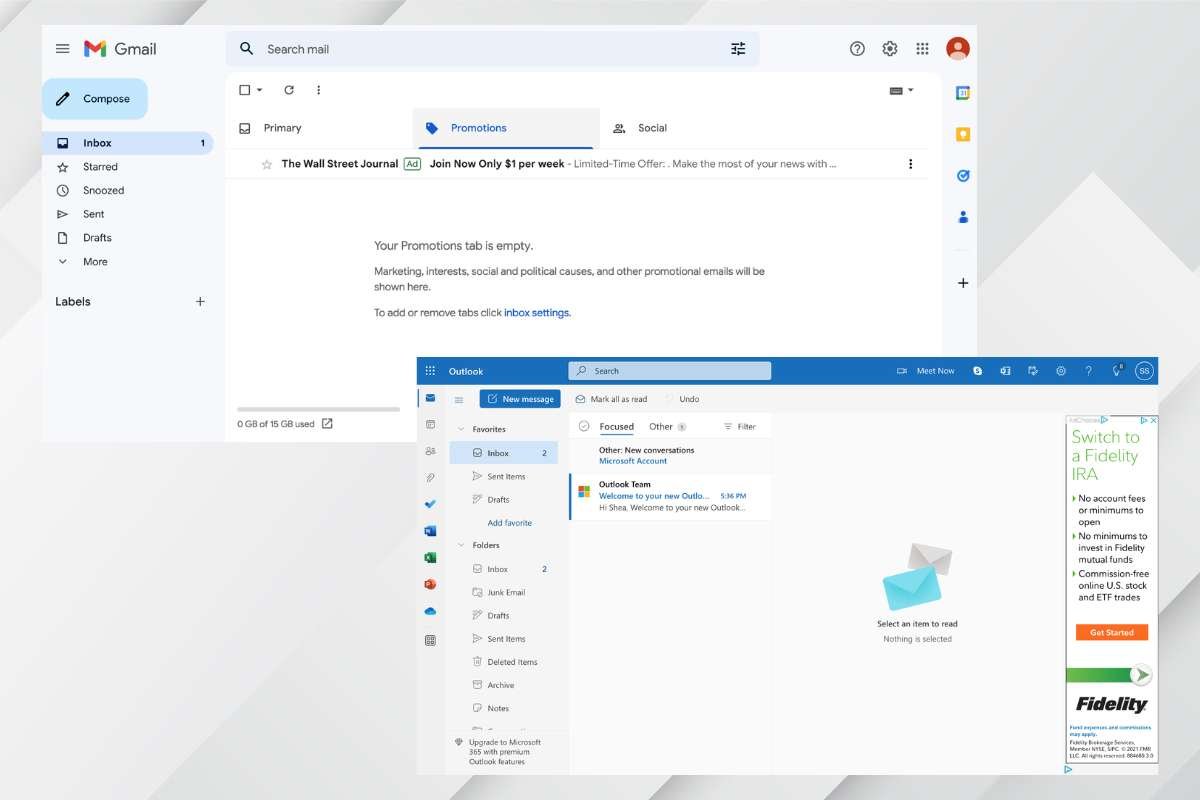
When you open Gmail for the first time, the first thing you notice is simplicity. The interface is clean and uncluttered. Emails are displayed in a straightforward list, and the left sidebar provides quick access to your customized labels. Gmail automatically sorts incoming emails into categories such as Primary, Social, and Promotions, which helps reduce email overwhelm. The search bar at the top is powerful, enabling you to find old emails using keywords or advanced search operators quickly. Most users feel comfortable with Gmail’s interface within minutes.
Outlook’s interface tells a different story. It is busier than Gmail, with more options visible at once. The Focused Inbox feature prioritizes essential messages at the top, which some users find helpful. The left sidebar provides access not only to email folders but also to Calendar, Contacts, Tasks, and shortcuts to other Microsoft applications. For people deeply invested in Microsoft products, this integration feels natural and efficient. For new users or those coming from Gmail, the interface can feel overwhelming initially.
The choice between Gmail and Outlook often comes down to personal preference regarding interface complexity. Gmail excels in simplicity and offers a quick learning curve. At the same time, Outlook appeals to users who want all their productivity tools readily accessible without the need for constant switching between applications.
How Gmail and Outlook Handle Email Organization?
Organization systems differ significantly between Gmail and Outlook, and understanding these differences helps determine which platform matches how you naturally categorize information.
➤ Gmail’s Label System
Gmail uses labels instead of traditional folders. A label is a tag you apply to emails to categorize them. The same email can have multiple labels simultaneously. Unlike folders in conventional email systems, where a message lives in one location, Gmail’s labels let you tag an email with numerous categories at once. You could label an email from a client with both “Client_ABC” and “Q1_Campaign.”
You can also nest labels under parent labels, creating hierarchies. This flexibility appeals to users who organize information across multiple dimensions. Gmail allows you to create filters that automatically apply labels to incoming emails based on the sender, subject line, or specific keywords. Over time, you develop a personalized system that matches your thinking style and business structure.
➤ Outlook’s Folder System
Outlook uses traditional folders for organization. You create folders, such as “Client ABC” or “Q1 Campaign,” and emails are organized into one folder at a time. Outlook also has categories, which function differently from folders. You can assign multiple categories to a single email for additional organization. The folder structure feels familiar to anyone who has used email for years, resembling how you organize files on your computer.
For users accustomed to traditional folder hierarchies, Outlook feels intuitive and natural. For newer users or those coming from Gmail, the folder-based approach might seem rigid compared to Gmail’s flexible label system.
Pricing Plans: What Fits Your Budget
Beyond basic storage, both Gmail and Outlook offer structured pricing for business and personal premium needs. Understanding these costs helps you budget effectively and choose the most suitable tier.
Gmail and Outlook Pricing for Business
For small businesses, both platforms offer competitive pricing. Gmail and Outlook both start at $6 per user per month for their base business tiers. Gmail Business Starter includes 30 GB of storage. Business Standard, at $12 per user per month, adds 2 TB of storage, while Business Plus, at $18 per user per month, includes 5 TB.
Outlook’s pricing through Microsoft 365 mirrors Gmail at the base level. Microsoft 365 Business Basic costs $6 per user per month, which includes email, Calendar, Teams, and 1 TB of OneDrive storage. Business Standard, at $12.50 per user per month, includes Office desktop apps. Business Premium, at $22 per user per month, includes advanced security features.
For organizations evaluating long-term email strategy, both Gmail and Outlook offer comparable value at entry-level pricing. Your choice may depend more on which ecosystem you are already invested in rather than price alone.
Productivity Features: Beyond Basic Email

Modern email platforms do far more than send and receive messages. Both Gmail and Outlook support productivity features that save time and reduce context switching.
Gmail’s Productivity Approach
Gmail itself offers limited built-in productivity features compared to Outlook. However, its real power lies in its integration with Google Workspace applications. When you are in Gmail, you can access Google Drive, Docs, Sheets, and Calendar without leaving your inbox. You can edit an attached document directly in Gmail by opening it through Google Docs.
Gmail features include innovative tools powered by artificial intelligence. Smart Compose suggests text completions as you type, helping you draft emails faster. Smart Reply provides suggested responses to incoming emails, allowing you to reply with a single click. Both features learn from your writing style over time, becoming increasingly personalized.
The Google Workspace ecosystem’s strength lies in its extensive third-party integrations. The Google Workspace Marketplace offers hundreds of add-ons that extend Gmail’s functionality. Tools like Hiver transform your Gmail inbox into a helpdesk platform, while Salesforce integration brings CRM features directly into your email. This extensibility makes Gmail particularly attractive for teams using specialized business applications.
Outlook’s Integrated Suite
Outlook bundles productivity features directly into the platform. Within Outlook, you have access to Calendar for scheduling, Tasks for tracking action items, Contacts for managing relationships, and Notes for capturing information. You can create meetings directly from your inbox by converting an email into a calendar event. Creating tasks works similarly by highlighting an email and converting it to a task with deadlines and reminders.
One feature Gmail does not offer is the ability to create and edit attachments directly from your inbox. With Outlook, if someone sends you a Word document, you can edit it directly in Outlook using Word Online without downloading the File. This simplifies the workflow for teams that frequently work with Microsoft Office documents.
Outlook’s most substantial productivity advantage stems from its integration with Teams. You can start Teams meetings, chats, and video calls directly from your inbox. For organizations that use Teams for collaboration, integrating this functionality into email saves significant time.
Security and Privacy: Protecting What Matters
In an era of increasing cyber threats, security features significantly influence the email platforms that organizations choose. Both Gmail and Outlook take security seriously, though they implement different approaches.
➤ Gmail’s Security Arsenal
Gmail is renowned for its advanced spam and phishing protection. Google’s machine learning algorithms continuously analyze emails to identify and filter spam, malware, and phishing attempts. Gmail’s spam folder contains significantly fewer legitimate emails than competitors, meaning fewer essential messages end up misclassified.
Gmail supports two-factor authentication, adding a crucial layer of security. Even if someone obtains your password, they cannot access your Account without a second authentication factor. For encryption, Gmail uses TLS (Transport Layer Security) when emails travel across the internet and encrypts stored emails on Google’s servers.
A standout security feature is Confidential Mode, available in Gmail accounts. This feature allows you to set expiration dates on emails you send, effectively controlling how long recipients can access them. You can revoke access to confidential emails at any time, even after sending them. Recipients must enter a verification code sent via SMS to access confidential emails, adding an extra layer of security for sensitive information.
➤ Outlook’s Security Strengths
Outlook provides robust security through several mechanisms. Like Gmail, it supports two-factor authentication and email encryption. However, Outlook’s standout security feature is Advanced Threat Protection (ATP). This feature continuously monitors your inbox for sophisticated threats like zero-day exploits, malware, and advanced phishing attacks.
For organizations with strict compliance requirements, Outlook has a significant advantage. Outlook explicitly complies with major data protection regulations, including the General Data Protection Regulation (GDPR) and the Health Insurance Portability and Accountability Act (HIPAA). This compliance certification is vital for healthcare organizations, financial institutions, and other regulated industries.
Setting Up Gmail and Outlook: Important 2025 Changes
As of 2025, setting up the big players in email together has changed significantly due to Google’s security updates. Understanding these changes ensures your setup works smoothly.
Important March 2025 Changes
In March 2025, Google completely disabled support for “less secure apps” when connecting Gmail to Outlook. This means that the old method of simply entering your Gmail username and password into Outlook is no longer practical for security reasons. Instead, you must use more secure authentication methods.
For new Outlook connections in 2025, Microsoft’s updated Outlook client utilizes OAuth authentication, a more secure connection method. When you add a Gmail account to a new Outlook, it guides you through Google’s authentication process, where you explicitly grant Outlook permission to access your Gmail account.
For users of classic Outlook versions, including Outlook from Microsoft 365, you can still connect Gmail using IMAP with an app password. An app password is different from your regular Gmail password. It is a special password explicitly created for apps like Outlook. You generate this password through your Google Account security settings, then enter it in Outlook’s setup process along with IMAP server details.
Step-by-Step Setup for New Outlook
To add your Gmail account to the new Outlook in 2025, follow these steps. First, open Outlook and go to View settings or File > Account Info. Next, select Accounts > Your accounts. Click “Add Account” and select your Gmail address from the suggested accounts dropdown. Choose “Continue.” Outlook will launch Google’s authentication window, where you sign in with your Gmail credentials. Review the permissions Outlook is requesting and click “Allow.” Finally, select “Done,” and Outlook begins syncing your Gmail inbox. The process typically completes within a few minutes.
1. Classic Outlook Setup with IMAP
For classic Outlook, enable IMAP in Gmail first. Log in to your Gmail account, click the settings gear icon, select “All Settings,” and then navigate to “Forwarding and POP/IMAP.” Enable IMAP and save changes. Next, generate an app password by going to your Google Account security settings, selecting “App passwords,” choosing your device type and application, and developing a unique password.
In Outlook, go to File> Add Account, enter your Gmail address, and select “Connect.” When Outlook prompts you for a password, enter the app password you just created, not your regular Gmail password. Click through the authentication, and Outlook will complete the setup.
2. Finding What You Need
When you receive hundreds of emails monthly, search functionality becomes critical. Both Gmail and Outlook offer search, but their implementations differ substantially in speed and accuracy.
Google’s legendary search technology powers Gmail’s search. You can search by sender, subject, keywords, attachment type, and date range. Gmail’s advanced search syntax enables complex queries, such as searching for emails from a specific person that contain attachments sent within a specified date range. Most users find precisely what they are looking for within one or two search attempts.
Outlook’s search, while functional, receives more complaints from users about accuracy. Community feedback indicates that Outlook’s search sometimes returns irrelevant results or fails to find messages that clearly match the search criteria. Outlook offers similar search filters to Gmail, but the underlying search technology does not match Gmail’s precision. If email search is critical to your workflow, Gmail has a notable advantage in this area.
3. Mobile Experience: Staying Connected on the Go
For modern professionals, mobile access to email is essential. Both Gmail and Outlook understand this and have invested significantly in their mobile applications.
Gmail’s mobile apps for iOS and Android are widely praised for their usability and feature completeness. The mobile interface mirrors the web experience, optimized for smaller screens. You get access to labels, search, and most Gmail features on your phone. The mobile apps sync with the web version, so your organizational system stays consistent across devices.
Outlook’s mobile apps are equally robust, offering comprehensive email functionality alongside calendar access and task management. The mobile interface features the Focused Inbox, which brings essential messages to the top of your phone. Many professionals appreciate having Calendar and task management features accessible alongside email on their mobile device, without needing to switch apps.
Both apps support offline access to previously synced emails, though connectivity is required for sending new messages.
Making Your Choice: The Big Players’ Comparison

Choosing between Gmail and Outlook comes down to understanding your priorities and existing technology ecosystem. Neither platform is universally better. They cater to different needs and preferences tailored to your specific situation.
Choose Gmail if you:
- Prefer a simple, intuitive interface that is easy to learn.
- Already use Google Workspace for documents and collaboration.
- Value extensive third-party integrations and add-on support.
- Prioritize advanced search capabilities and spam filtering.
- Work in teams that value Google’s real-time collaboration features.
- Prefer flexible label-based organization over traditional folders.
- Want a platform that feels intuitive right from your first login.
Choose Outlook if you:
- Already invested in Microsoft 365 and Office applications.
- There is a need for deep integration between email and Microsoft Teams.
- Require dedicated compliance certifications, such as GDPR or HIPAA compliance—value built-in productivity features like Tasks and Calendar directly in your email app.
- Prefer traditional folder-based organization.
- Want more free storage in your email account.
- Need Advanced Threat Protection for enhanced security.
- Work primarily within the Microsoft ecosystem.
Conclusion
In 2025, both Gmail and Outlook will continue to be excellent choices for business email. The market share split reflects that reasonable professionals reach different conclusions based on their specific needs and requirements. Rather than debating which platform is objectively superior, focus on which one aligns with your software ecosystem, security requirements, and workflow preferences.
For Google Workspace organizations, Gmail is the natural choice that amplifies your existing productivity investments. For Microsoft 365 organizations, Outlook offers integration benefits that enhance your current workflow. The decision ultimately reflects your existing technological commitments and future direction.
Your choice of the mainstream email platforms should align with your business goals, budget, and existing tools. Both platforms will serve you well if you select the one that fits your specific circumstances.